Austin Robertson
Marketing Administrator


Extej
Quick Start Guide
Get Started
This guide will walk you through the steps to run the application on your local computer. Follow these instructions carefully to ensure a smooth setup process.
1. Install Node.js
First, you need to install Node.js version 20.17.0 (recommended). Node.js is a JavaScript runtime environment that allows you to run JavaScript code outside of a browser, which is essential for server-side development.
- Visit the Node.js website: Go to the official Node.js website.
- Choose the appropriate version: Select the installer for your operating system (Windows, macOS, or Linux). If you're unsure, the website usually recommends the most suitable version.
- Download and install Node.js: Follow the installation instructions provided by the installer. For Linux and macOS users, consider using a package manager:
- Linux: Use a command like sudo apt-get install -y nodejs (for Ubuntu/Debian) or follow your distribution's package management instructions.
- macOS: Use Homebrew by running brew install node in your terminal.
Verify the installation: After installation, open your terminal and run node -v. You should see the version number, confirming that Node.js is installed correctly.
2. Install a Text Editor
To work with the source code, you'll need a robust text editor. We recommend Visual Studio Code (VS Code) for its extensive features and ease of use.
- Download VS Code: Visit the Visual Studio Code website and download the version for your operating system.
- Install VS Code: Follow the installation prompts. Once installed, you can further enhance VS Code by installing extensions that support your development needs, such as the Node.js extension pack.
Why Visual Studio Code ?
VS Code is highly customizable, supports a wide range of programming languages, and has an integrated terminal, making it an excellent choice for both beginners and experienced developers.3. Unpack the Project Files
After downloading the project archive, you’ll need to unpack it to access the source code.
- Locate the downloaded archive: This is typically found in your Downloads folder unless specified otherwise.
- Extract the archive: Right-click on the archive file and select “Extract Here” (Windows/Linux) or double-click to open and extract on macOS.
- Understand the directory structure:
- dist: This folder contains the files that should be uploaded to a hosting environment to make the site publicly accessible.
- ex-dashboard-app: This is the main project directory where the source code is stored. You’ll be working in this folder for local development and customization.
4. Open the Project in the Code Editor
Now that your project files are unpacked, it's time to open them in Visual Studio Code.
- Launch VS Code: If it's not already open, start the application.
- Open the project folder: Navigate to File > Open Folder..., browse to the ex-dashboard-app folder, and click Open.
Tip: Once the folder is open, you’ll see the project’s file structure in the Explorer panel on the left side of VS Code. This is where you can easily navigate through your files.
5. Open the Terminal in the Code Editor
VS Code includes a built-in terminal, which allows you to run command-line operations directly within the editor.
- Open the terminal: Click on View > Terminal or use the shortcut Ctrl +(backtick) on Windows/Linux or Cmd + on macOS.
What is a terminal ?
The terminal is a text-based interface where you can execute commands, run scripts, and manage files. It’s a powerful tool that helps you interact directly with your system and project.6. Install Dependencies
Dependencies are external libraries or modules that your project requires to function correctly. These are specified in the package.json file.
- Install dependencies: In the terminal, type the command npm install and press Enter.
This command will read the package.json file and automatically download and install all necessary packages into a node_modules folder.
What are dependencies ?
Dependencies are pieces of code written by others that your project depends on. They help extend functionality without reinventing the wheel. For more details, you can explore the Node.js documentation on managing dependencies here.7. Run the Project on the Local Computer
Once your dependencies are installed, you can start the development server to run the application locally.
- Run the development server: In the terminal, enter npm run dev and press Enter.
This command will compile the project and start a local server. You should see an output similar to:
➜ Local: http://localhost:5173/This indicates that your application is running and accessible on your local machine.
Troubleshooting: If you encounter any errors during this step, check that all dependencies were installed correctly and that no errors occurred during the installation process.
8. Open the Application in the Browser
With the server running, you can now view your application in a web browser.
- Open the application: Copy the link http://localhost:5173/ from the terminal and paste it into your browser’s address bar, or simply hold Ctrl (Cmd on macOS) and click the link in the terminal.
If the application loads successfully, congratulations! Your application is now running on your local computer.
Next Steps: From here, you can start modifying the code, testing features, and developing new functionalities. Refer to the project's README or documentation for more advanced configurations and deployment instructions.
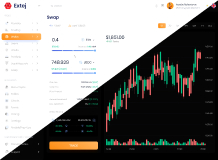
- Azure Blue
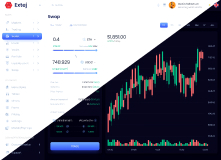
- Royal Green
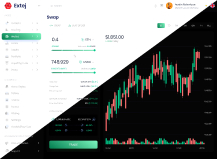
- Golden Yellow